You can update your billing details and payment information directly from your DriveUploader account. This includes your billing address and the invoice details shown on your receipts.
All billing information is managed through our payment provider.
Opening billing settings
- Log in to your DriveUploader account.
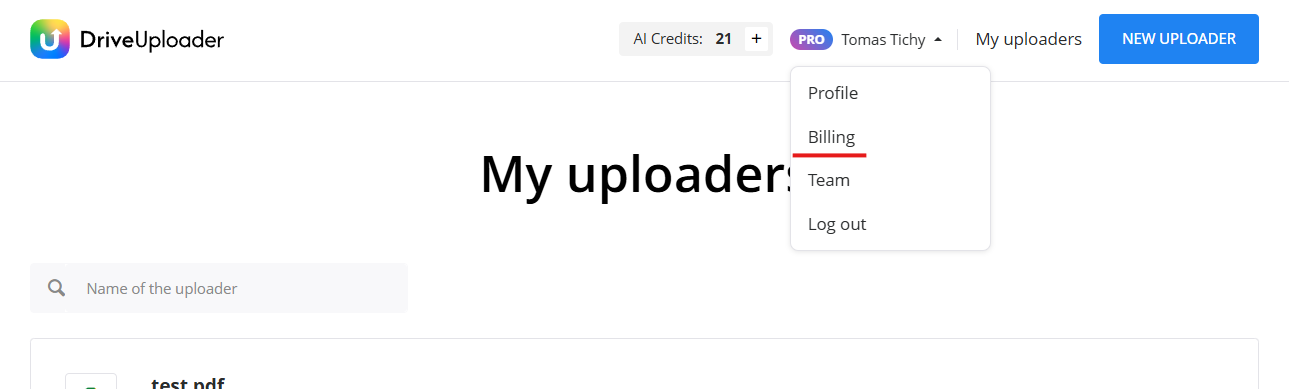
- Click your profile name in the top-right corner.
- Select Billing.
You will be redirected to your billing overview.
Accessing your invoice
In the Billing history section:
- Find the invoice you want to update.
- Click Open receipt.
Updating your billing information
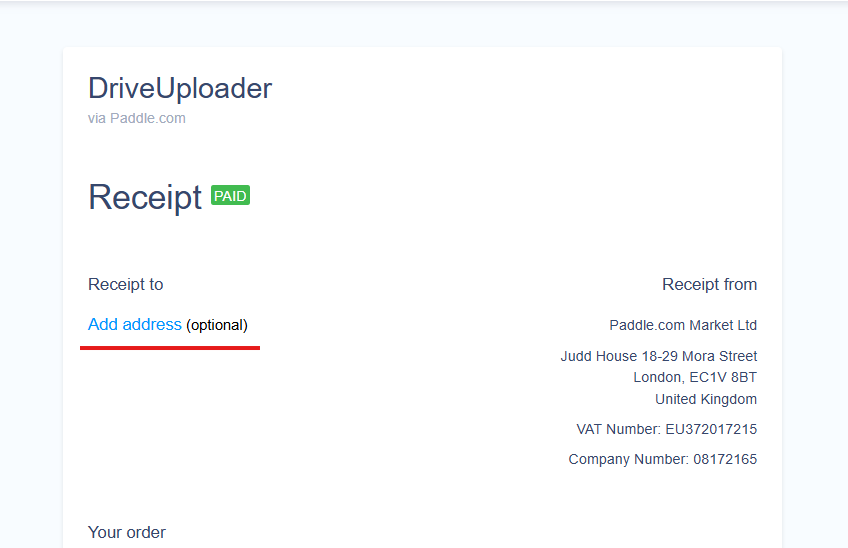
On the invoice page, you can add or edit your billing details.
- If you have not added a billing address yet, you will see Add address.
- If a billing address is already set, the same option appears as Edit, in the same location.
Click this option to enter or update your billing information. After saving, the updated details will be reflected on your invoice.
Important notes
Billing and payments are processed through our payment provider, so all invoice details are managed within their system.
If you need to make additional changes beyond your billing details, you may need to contact the payment provider directly.
Summary
To update the address on your invoice:
- Open Billing from your profile menu.
- Open a receipt from your billing history.
- Use Add address or Edit to update your billing details.
Your changes will be applied to your invoice after saving.
