DriveUploader allows you to collect information from users as part of the upload process. Using the Form Builder, you can create custom fields and require users to provide information before uploading files.
Typical examples include:
- Name and email collection
- Project information
- Order numbers
- Invoice references
- Customer details
- Event registrations
Collected data can be stored in a Smart Spreadsheet and used in other DriveUploader features such as Smart Subfolders, Notifications, and Document AI workflows.
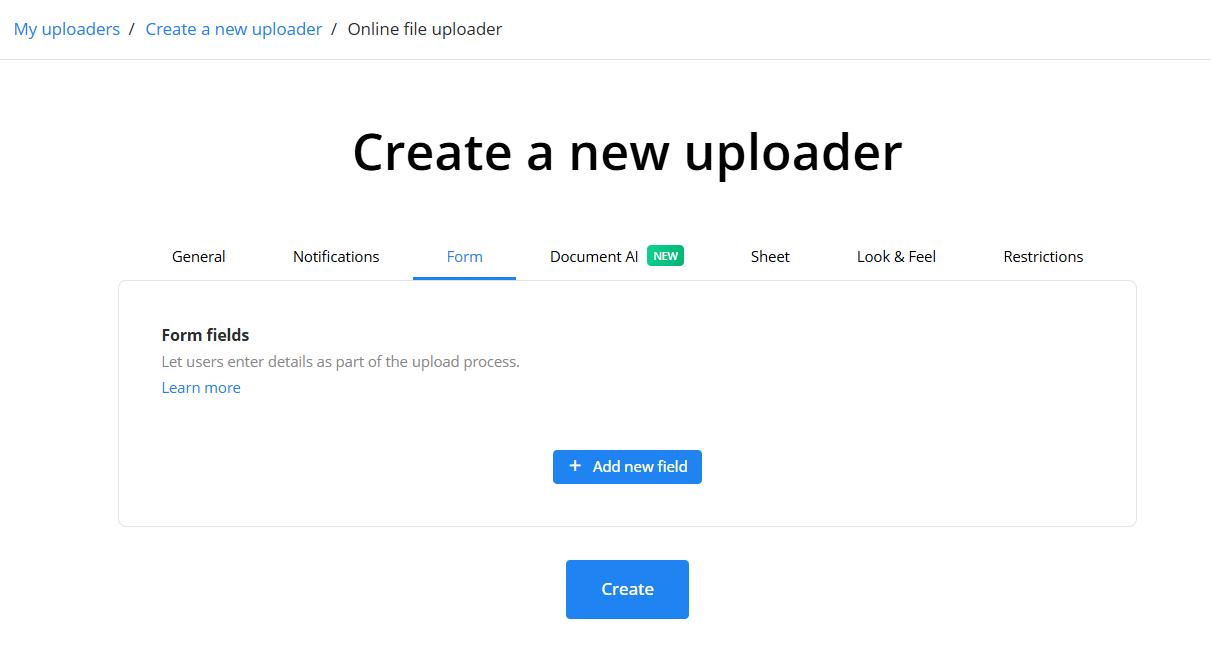
Opening the Form Builder
When creating a new uploader or editing an existing one:
- Open your uploader.
- Click Edit.
- Navigate to the Form tab.
The Form Builder allows you to add and manage custom fields that users must complete during the upload process.
Adding a form field
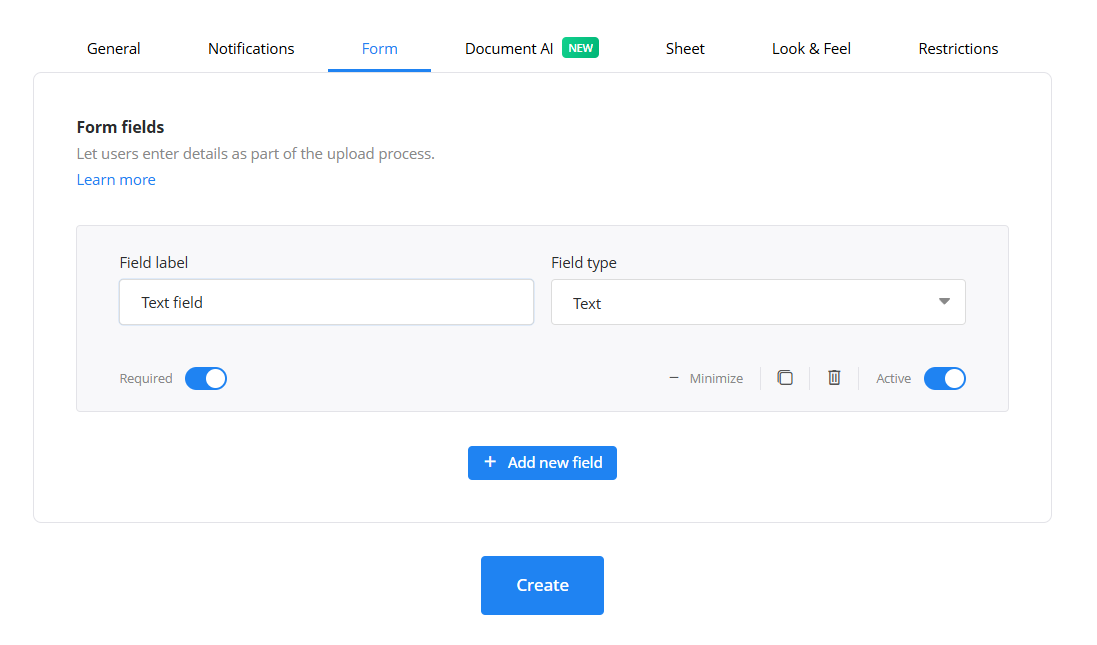
To add a field:
- Click Add new field.
- Enter a Field label.
- Select a Field type.
- Decide whether the field should be Required.
- Save your changes.
You can create multiple fields and arrange them to match your workflow.
Available field types
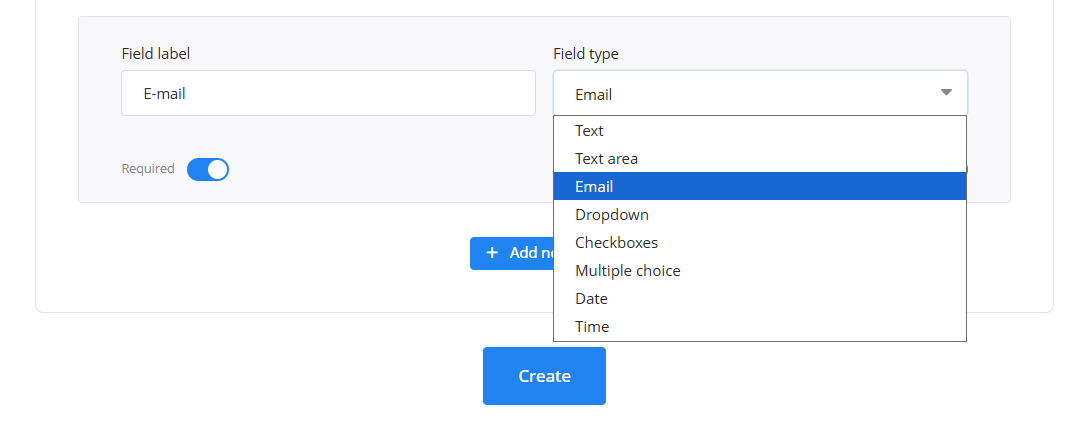
DriveUploader supports several field types:
- Text
- Text area
- Email
- Dropdown
- Checkboxes
- Multiple choice
- Date
- Time
Each field type is designed for different kinds of information. For example:
- Use Email to collect contact information.
- Use Dropdown when users should select from predefined options.
- Use Checkboxes when multiple selections are allowed.
- Use Multiple choice when only one option should be selected.
Managing form fields
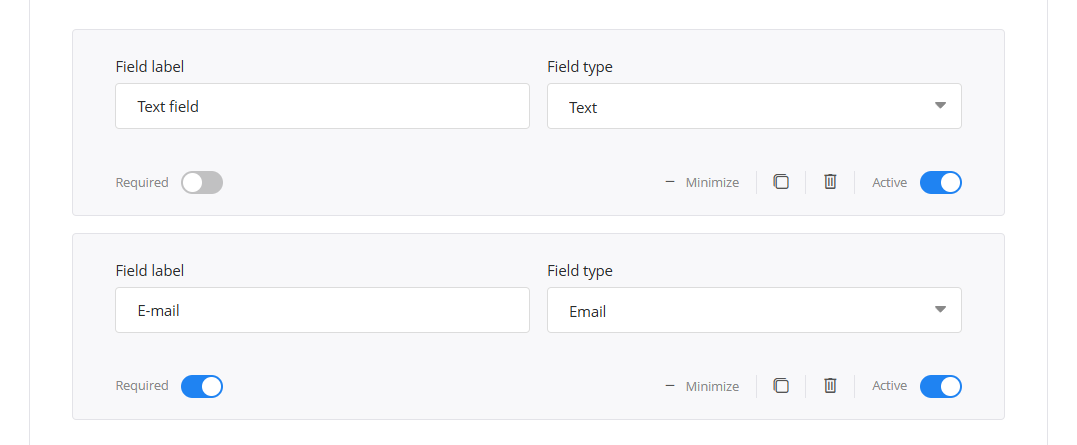
Each field can be configured individually. Available options include:
- Custom field label
- Required field validation
- Enable or disable a field
- Delete a field
- Collapse or expand field settings
This allows you to build forms ranging from a simple name request to a complete submission workflow.
Storing collected data
Creating a form does not automatically decide which information will be stored. To choose what data should be saved:
- Open the Sheet tab.
- Create a spreadsheet.
- Select which values should be stored in each column.
A spreadsheet can contain:
- File metadata
- Form values
- Document AI values
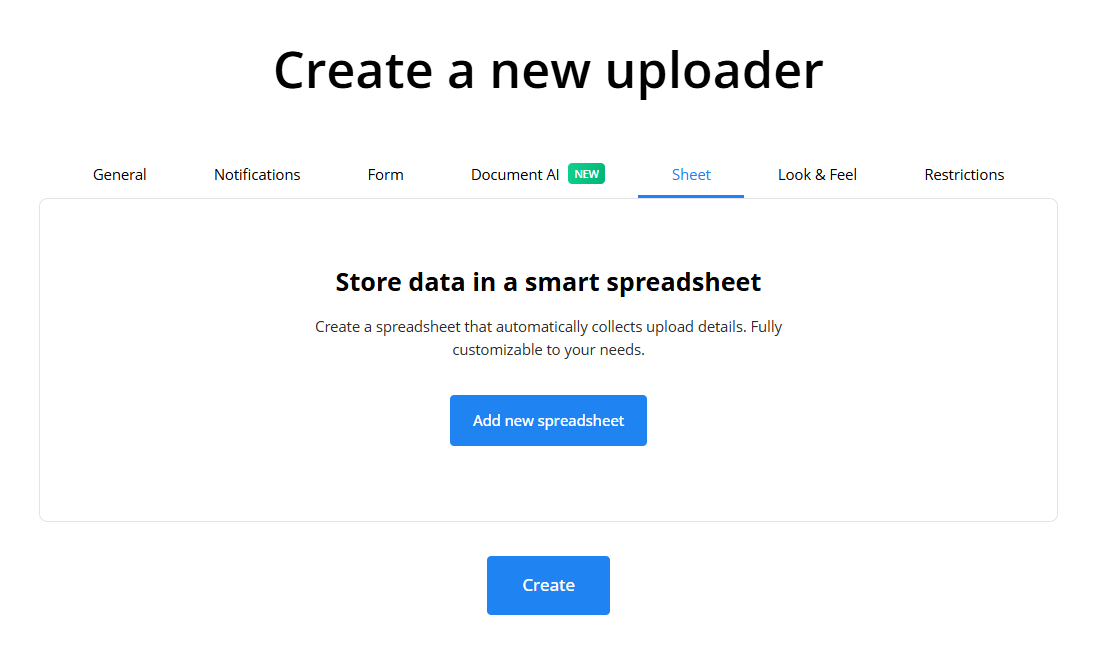
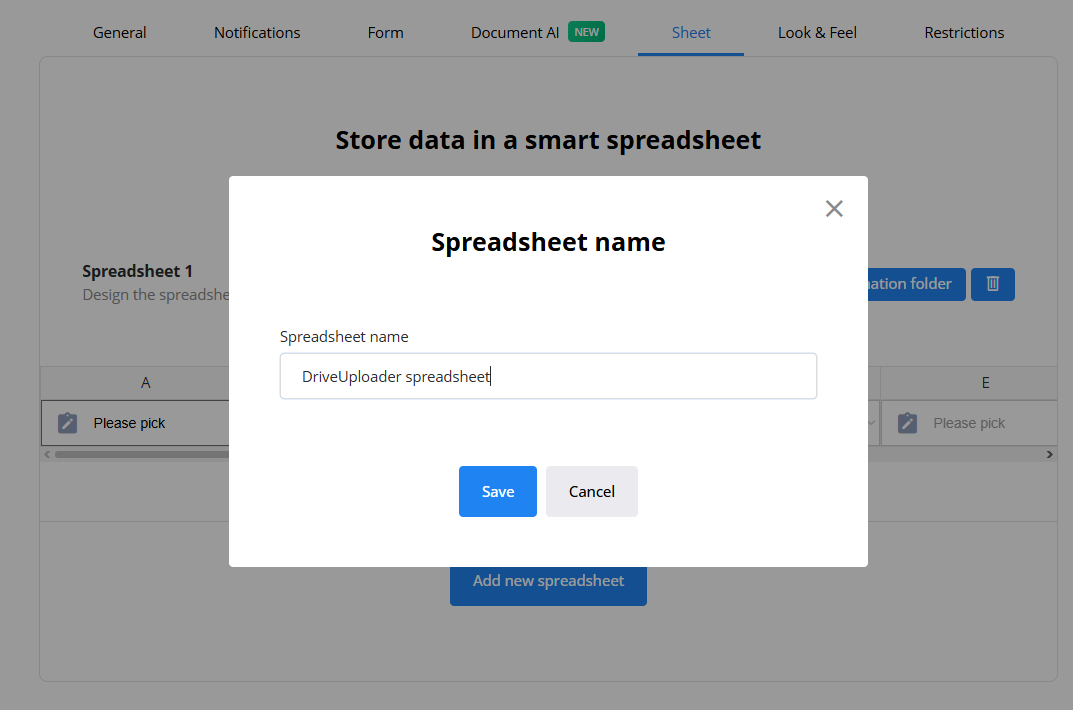
Creating a Smart Spreadsheet
In the Sheet tab:
- Click Add new spreadsheet.
- Give the spreadsheet a name.
- Configure the columns.
Each column can store different information collected during the upload process.
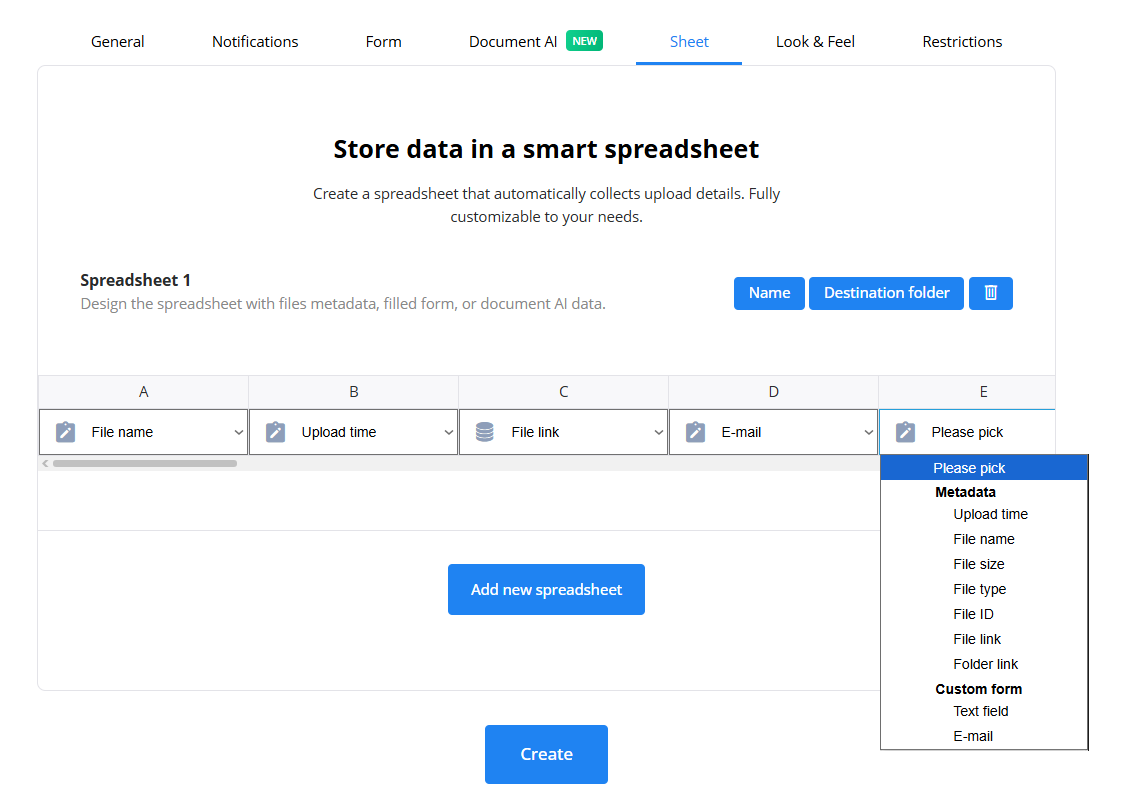
Selecting stored values
For each spreadsheet column, you can choose what information should be saved. Available options include:
Metadata
- Upload time
- File name
- File size
- File type
- File ID
- File link
- Folder link
Custom Form values
Any field created in the Form tab can be stored in the spreadsheet. Examples:
- Name
- Email
- Project name
- Order number
- Custom fields
Document AI values
Values extracted by Document AI can also be stored in the spreadsheet and combined with form data.
Using form data in other features
Once collected, form values can be used throughout DriveUploader. Examples include:
- Sending personalized notifications
- Creating Smart Subfolders
- Organizing uploads automatically
- Combining user-entered information with Document AI results
You do not need to store every value in a spreadsheet to use it elsewhere. Form values remain available to other DriveUploader features.
Summary
The Form Builder allows you to collect custom information from users during the upload process. You can:
- Create custom fields
- Require specific information
- Store selected values in a Smart Spreadsheet
- Use collected data in Notifications
- Use collected data in Smart Subfolders
- Combine form values with Document AI workflows
This makes it easy to build upload workflows tailored to your business needs.
