DriveUploader allows you to customise the look and feel of your uploader so it matches your brand. Using the Design editor, you can adjust colours, fonts, text, and layout elements without any coding.
All design settings are available in the Look & Feel tab.
Opening the design editor
- Log in to your DriveUploader account
- Go to My uploaders
- Find the uploader you want to customise and click Edit
- Navigate to the Look & Feel tab
You will see a live preview on the right side, which updates as you make changes.
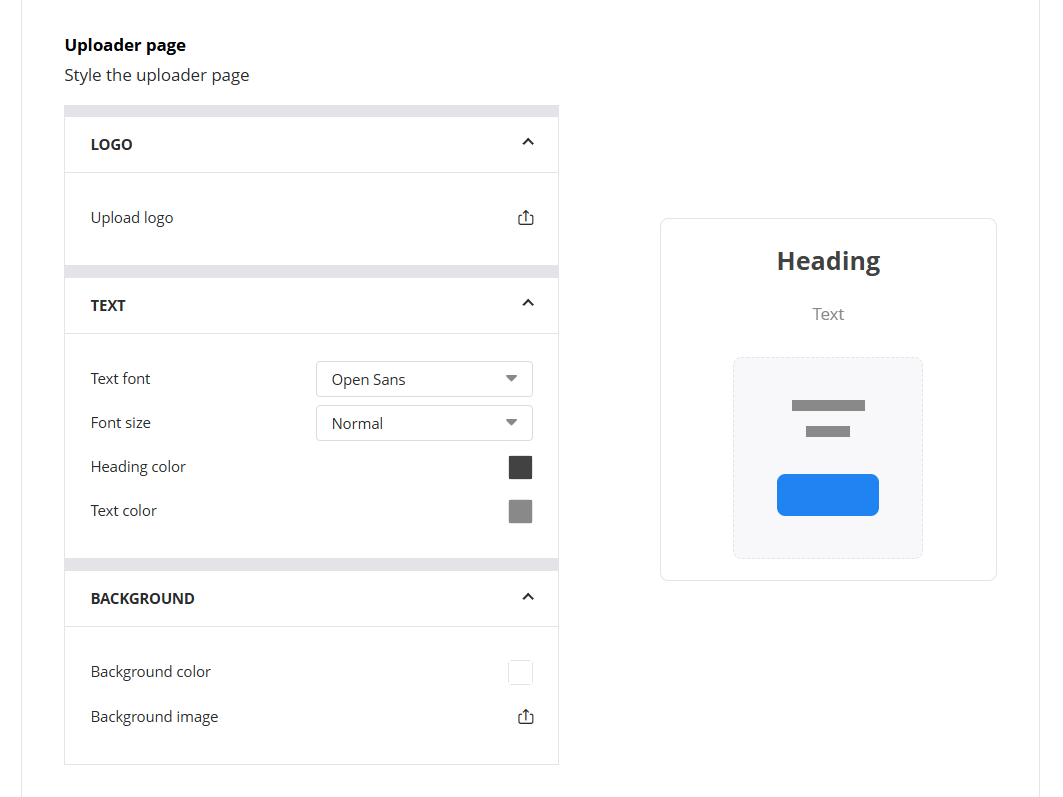
Customising the uploader page
In the Uploader page section, you can control the overall appearance of the page.
You can:
- Upload your logo
- Change text styles (font, size, colours)
- Adjust the background colour or image
This helps you align the uploader with your brand identity or website design.
Styling the uploader area
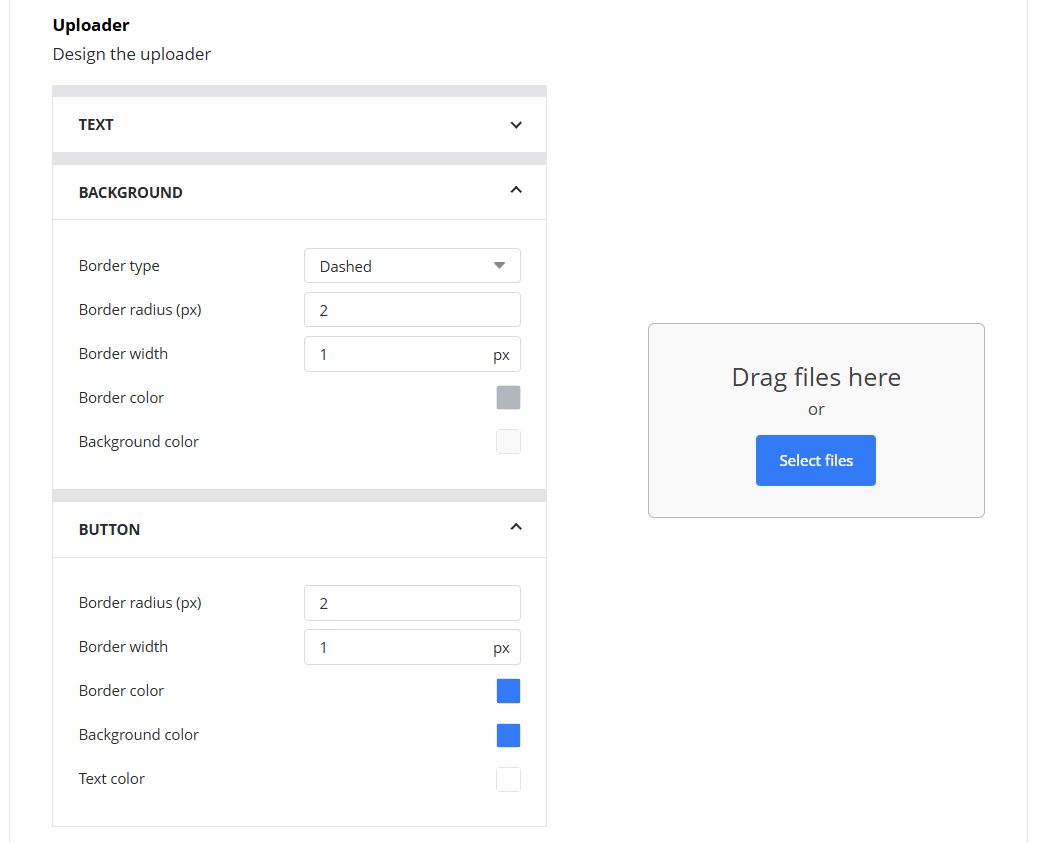
In the Uploader section, you can customise the upload box itself.
This includes:
- Changing the headline text (e.g. “Drag files here”)
- Adjusting fonts, sizes, and colors
- Modifying the border style, radius, and width
- Setting background and button styles
These options allow you to match the uploader to your visual style while keeping it easy to use.
Customizing buttons
You can also style the upload button to match your branding.
You can adjust:
- Background color
- Border style
- Text color
This ensures the call-to-action fits naturally into your design.
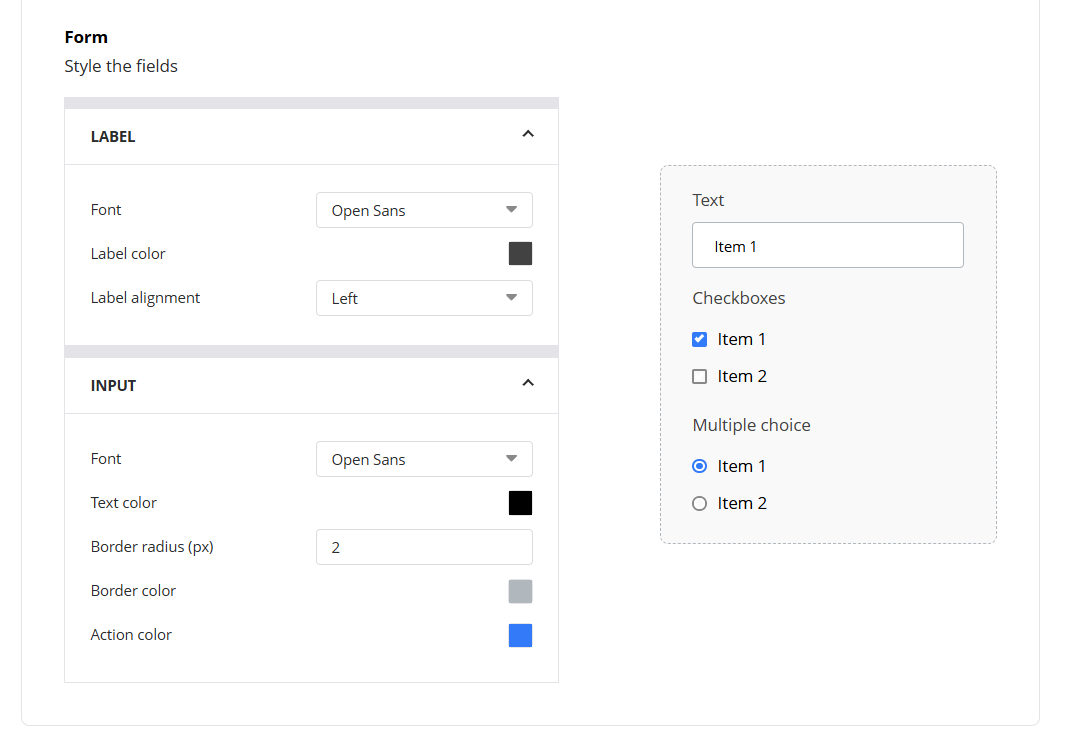
Styling form fields
If your uploader includes form fields, you can customize their appearance in the Form section.
You can modify:
- Label styles (font, alignment, color)
- Input field appearance (colors, borders, radius)
- Accent or action colors
This keeps the entire upload experience visually consistent.
Live preview
As you make changes, the preview updates in real time. This allows you to immediately see how your uploader will look to users.
Once you are satisfied with the design, click Save to apply the changes.
Summary
The Design editor allows you to fully customize your uploader’s appearance. You can adjust branding elements, colors, typography, and layout to create a consistent look that matches your website or company identity.
All changes can be made directly in the Look & Feel tab, with no coding required.
