DriveUploader allows you to embed an uploader directly into your website so visitors can upload files without leaving your page.
Embedding is done using an iFrame, which displays the uploader interface inside your website.
Before you start
Embedding uploaders is available on PLUS plans and higher.
Make sure embedding is enabled in the uploader settings before copying the embed code.
Enabling embedding
- Log in to your DriveUploader account.
- Go to My uploaders.
- Open the uploader you want to embed.
- Navigate to the Embed tab.
- Turn on Enable embedding.
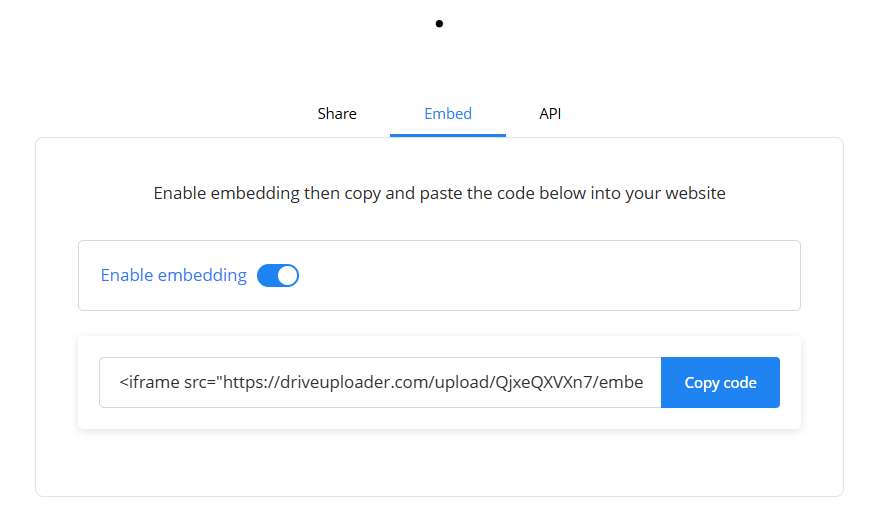
Embedding will not work unless this option is enabled.
Copying the embed code
After enabling embedding, DriveUploader will generate an iframe code snippet.
- Click Copy code.
- Paste the code into the HTML of your website where you want the uploader to appear.
The uploader will now display directly on your page.
Example embed code
The generated code will look similar to this:
<iframe src="https://driveuploader.com/upload/YOUR-UPLOADER-KEY/embed"
        width="100%"
        height="600"
        frameborder="0">
</iframe>
You can adjust the width and height values to fit your website layout.
Where embedding can be used
You can embed the uploader into most websites, including:
- Custom HTML websites
- WordPress pages
- Webflow
- Wix (HTML embed blocks)
- Other website builders that support iframe embeds
Troubleshooting embedding issues
If your uploader does not appear on your website and you see a message such as:
"Embedding of this upload form is not allowed"
Check the following:
- Make sure Enable embedding is turned on in the uploader settings.
- Confirm that you copied the correct iframe code from the Embed tab.
- Ensure your website platform allows iframe content.
Some website builders block iframes in restricted environments.
Alternative option
If embedding is not supported on your website platform, you can always share the uploader using its direct link from the Share tab.
Users will open the uploader in a separate page instead.
Summary
To embed a DriveUploader on your website:
- Open your uploader settings.
- Go to the Embed tab.
- Enable embedding.
- Copy the iframe code.
- Paste it into your website HTML.
Once embedded, visitors can upload files directly from your website.
