This tutorial explains how to create your first uploader in DriveUploader and choose where uploaded files are stored in Google Drive. It also introduces the difference between an Online file uploader and an Email uploader, helping you select the right option for your workflow.
What you will learn
In this tutorial, you will learn how to:
- Create a new uploader
- Choose the correct uploader type
- Select a destination folder in Google Drive
Before you start
To use DriveUploader, you need:
- A DriveUploader account
- An active Google Drive
Creating a new uploader
- Log in to your DriveUploader account
- Go to My uploaders
- Click NEW UPLOADER
You will see the Create a new uploader screen with two options:
- Online file uploader
- E-mail uploader
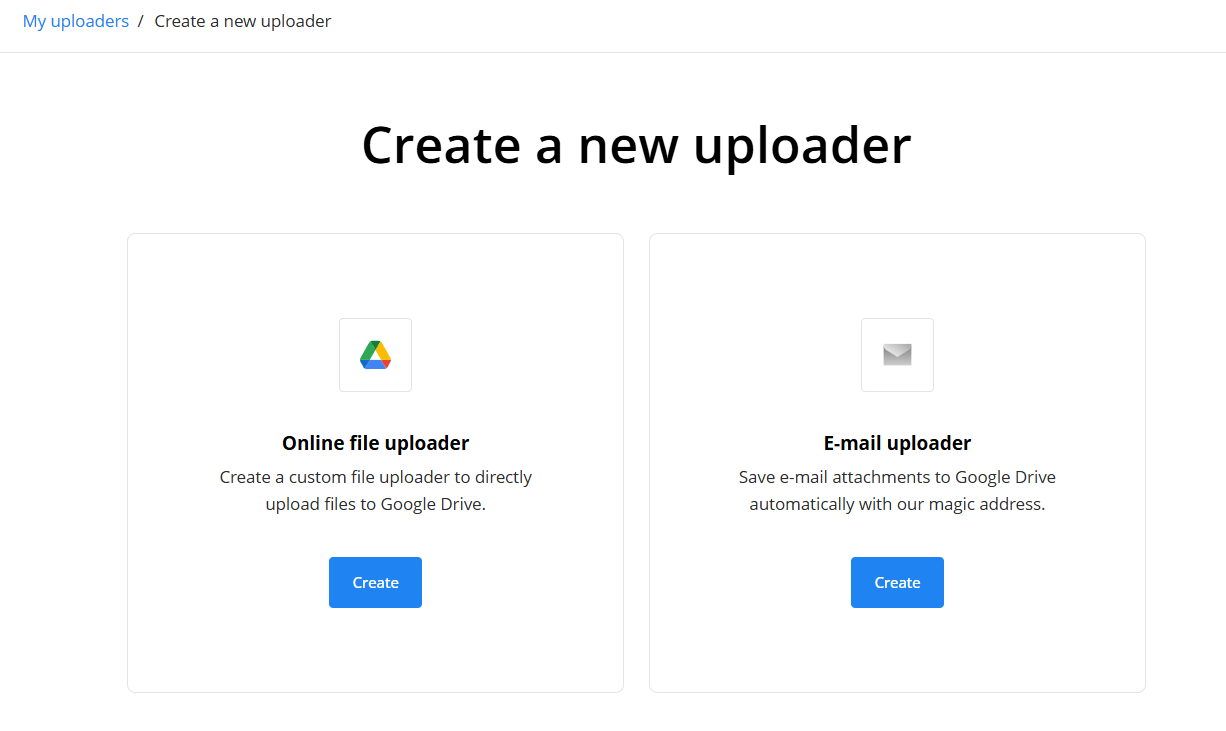
Choose the option that matches how you want to receive files.
Online file uploader
The Online file uploader is designed for browser-based uploads. It is typically used when you want to collect files via a shared link or an embedded uploader on a website. Users can upload files without logging in.
Email uploader
The Email uploader is intended for files that arrive as email attachments. Any attachment sent to an email address is automatically uploaded to your Google Drive via DriveUploader.
Choosing where files are uploaded in Google Drive
When creating an uploader, you must select a destination folder in Google Drive. You can also select a name for a folder in which you want to have files saved.
You can choose:
- A folder in your Google Drive
- A folder in a Shared Drive (only available on a PRO/TEAM plan)
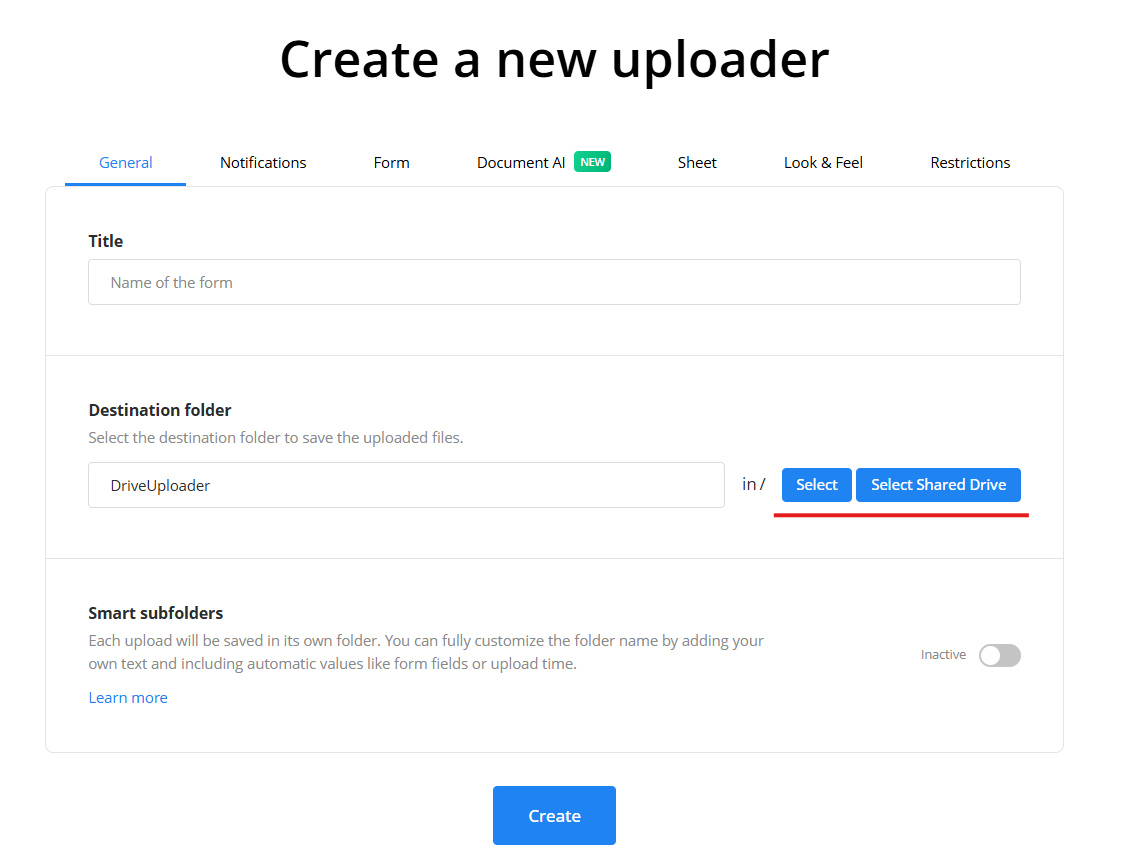
Files uploaded through DriveUploader are saved directly to your Google Drive. DriveUploader does not store files on its own servers. All uploaded files remain under your Google account ownership, and the destination folder can be changed later if needed.
Saving your uploader
Before saving your uploader, make sure you have entered a title. The title is required and helps you identify the uploader later.
After reviewing your settings:
- Enter a title for your uploader
- Click Save
Your uploader is now ready to receive files.
