Once you create an uploader, you can share it in several ways depending on your needs and your plan. DriveUploader provides three sharing methods: a direct link, website embedding, and JavaScript API integration.
If you are using an Email uploader, sharing works differently and is explained below.
All sharing options are available inside the uploader settings.
Opening sharing options
- Log in to your DriveUploader account.
- Go to My uploaders.
- Open the uploader you want to share.
Each tab provides a different way to distribute or integrate your uploader.
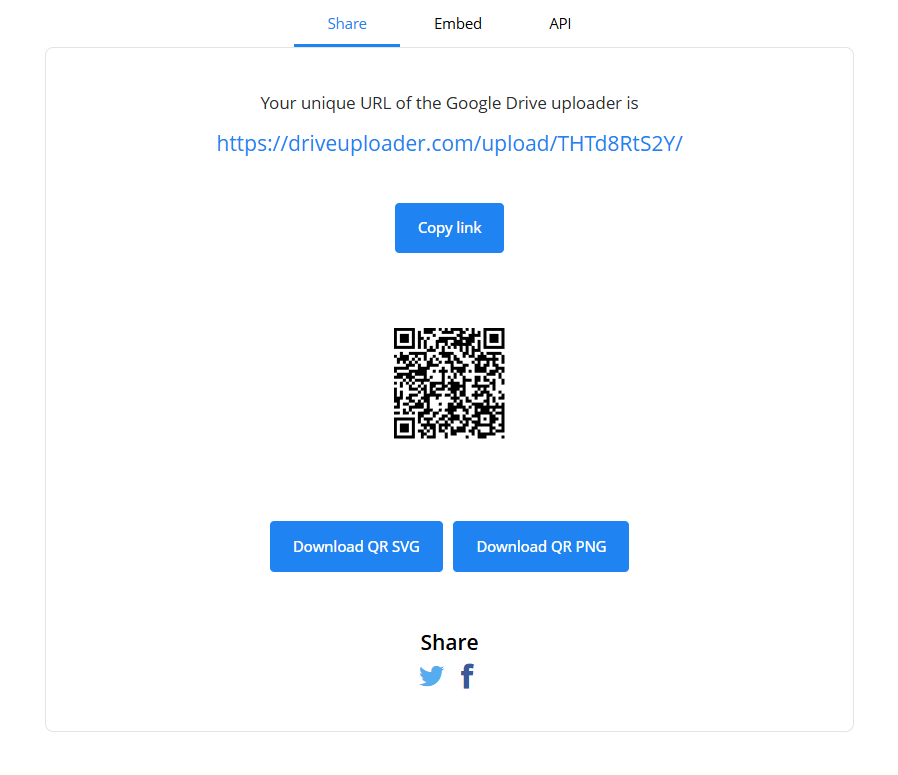
Share tab – direct link and QR code
The Share tab contains your uploader’s unique public URL.
Click Copy link to copy the URL and send it via email, messaging apps, or publish it on your website. Anyone with this link can upload files according to the permissions and restrictions you have configured.
You can also download a QR code in SVG or PNG format, which is useful for printed materials or in-person sharing.
This option is available on all plans.
Embed tab – add the uploader to your website
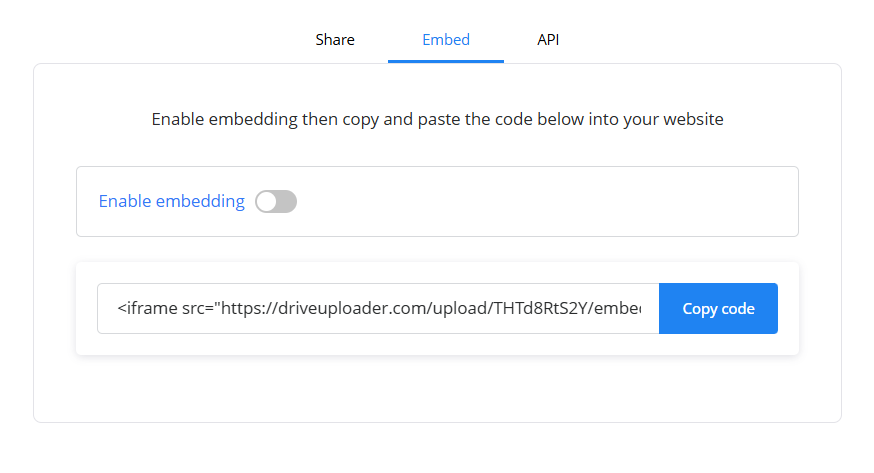
The Embed tab allows you to place the uploader directly inside your website using an iframe.
To use embedding:
- Open the Embed tab.
- Turn on Enable embedding.
- Copy the generated iframe code.
- Paste the code into your website’s HTML.
Embedding will only work if Enable embedding is turned on. If it is disabled, the uploader cannot be displayed on your website.
Embedding is available on PLUS plans and higher.
API tab – advanced integration
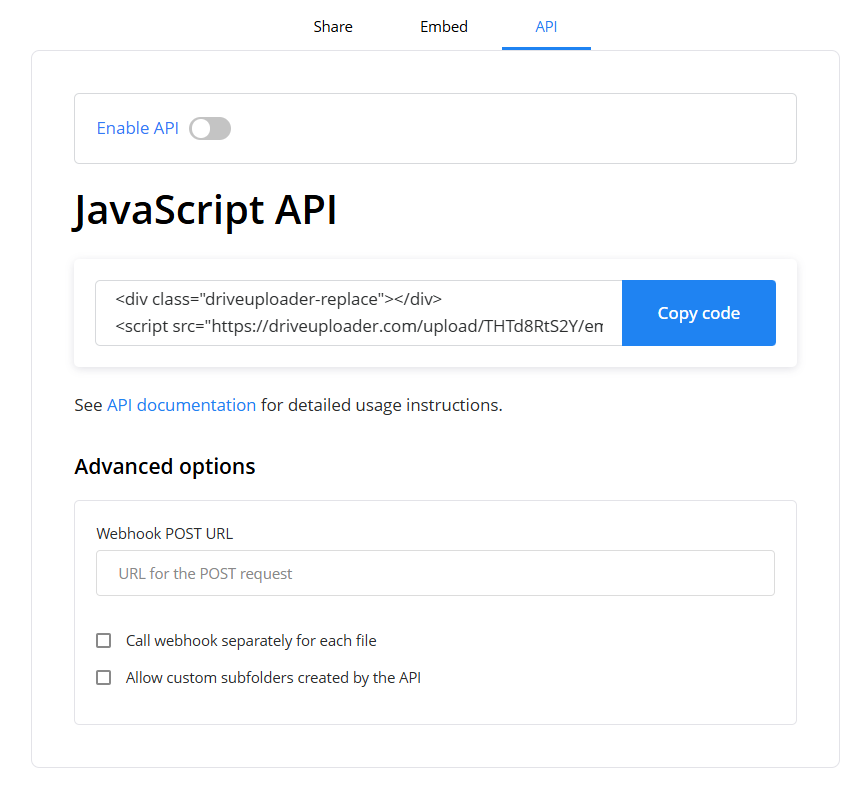
The API tab allows deeper integration using JavaScript.
To use the API:
- Open the API tab.
- Turn on Enable API.
- Copy the generated JavaScript code snippet.
The JavaScript integration will only work if Enable API is activated.
Within the API tab, you can also configure a Webhook POST URL to send upload data to your server. Additional options allow you to call the webhook separately for each file and to enable custom subfolders created via the API.
API access is available on PRO plans and higher.
E-mail uploader
If you are using an Email uploader, sharing works differently.
Instead of sharing a public link, you share the unique uploader email address generated in the uploader settings. Any attachments sent to this email address will be automatically uploaded to your selected Google Drive folder.
You simply provide this email address to the people or systems that should send files. There is no embedding or API integration required for basic email uploads.

Summary
DriveUploader offers three ways to share your uploader. You can distribute a direct link, embed it into a website, or integrate it using the JavaScript API. For embedding and API integration, make sure the corresponding option is enabled in the uploader settings before copying the code.
