DriveUploader allows you to send automatic email notifications when a file is uploaded. You can notify yourself, your team, or the person who uploaded the file.
Notifications can be fully customized, including the subject, message, and dynamic variables.
Opening notification settings
- Log in to your DriveUploader account.
- Go to My uploaders.
- Find the uploader you want to modify and click Edit.
- Navigate to the Notifications tab.
Notifications to you or your team
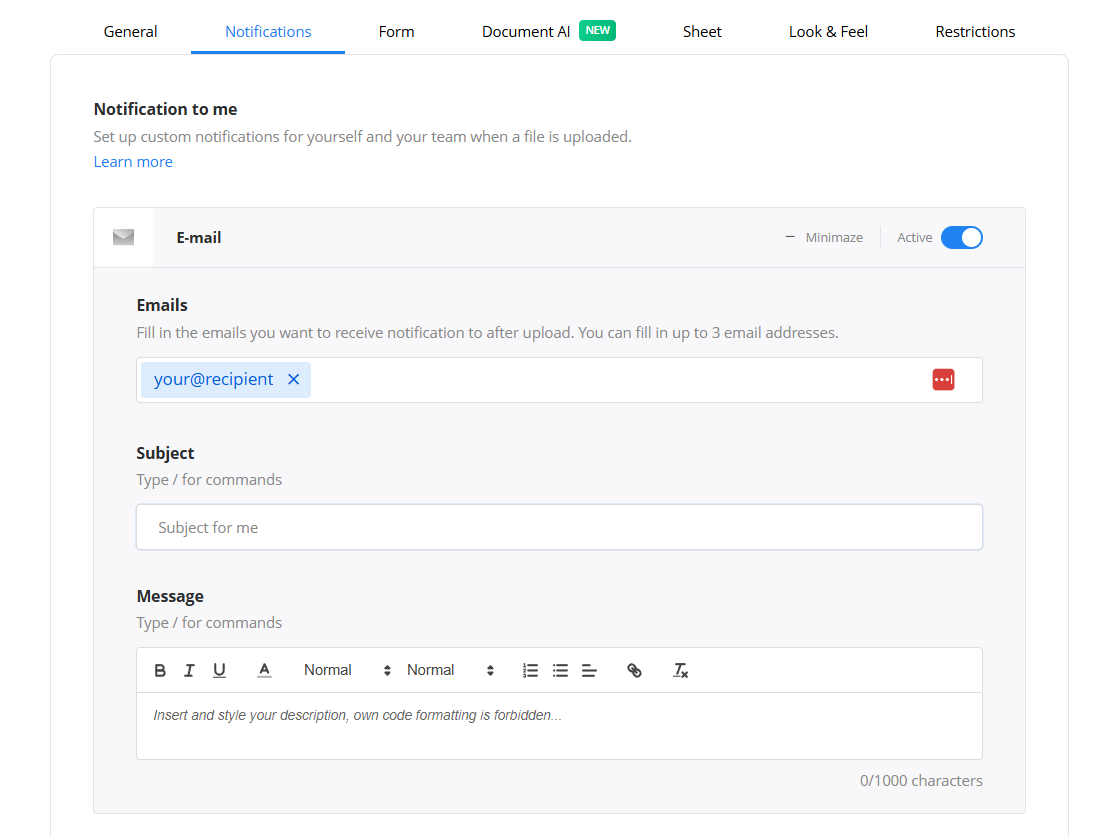
You can receive an email notification every time someone uploads a file.
To set this up:
- In the Notification to me section, enable the notification using the Active toggle.
- Add up to 3 email addresses that should receive notifications.
- Enter a custom Subject.
- Write your Message.
Once enabled, you will receive an email after each upload.
Notifications to the uploading person
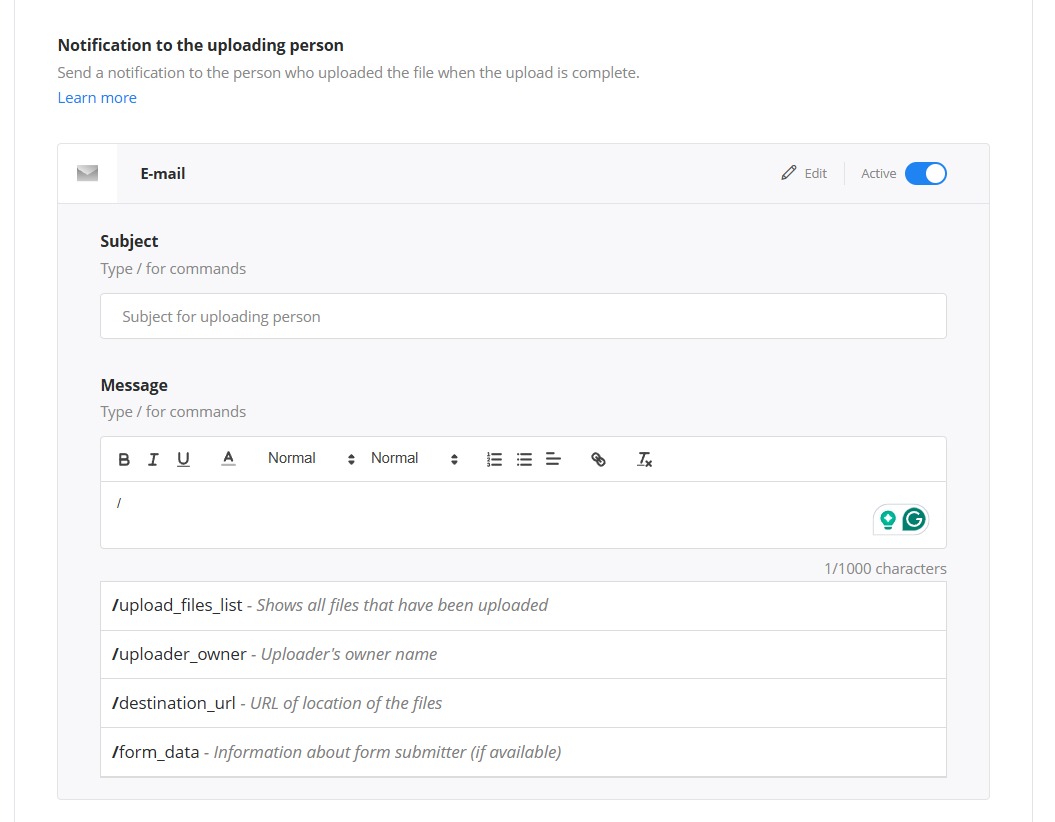
You can also send a confirmation email to the person who uploaded the file.
To enable this:
- In the Notification to the uploading person section, turn on the Active toggle.
- Customize the Subject.
- Customize the Message.
This is useful for confirmations, instructions, or next steps after submission.
Using variables in notifications
You can personalize notifications using dynamic variables. To insert a variable, type / in the subject or message field.
Common variables include:
- /uploader_title – uploader name
- /uploader_owner – uploader owner
- /timestamp – date and time of upload
- /upload_files_list – list of uploaded files
- /destination_url – link to uploaded files
- /form_data – submitted form data (if used)
These variables are automatically replaced with real data when the email is sent.
Customizing the message
The message editor allows basic formatting such as bold text, lists, and links.
You can use it to:
- Provide context about the upload.
- Share links to files.
- Add instructions or next steps.
This helps create clear and professional communication.
Summary
DriveUploader notifications allow you to stay informed and automate communication after each upload. You can:
- Receive notifications yourself or send them to your team.
- Notify the uploading person.
- Customize the subject and message.
- Use dynamic variables for automation.
All settings are available in the Notifications tab.
