Smart Subfolders automatically organise uploaded files into separate folders in Google Drive based on information collected during the upload process.
Instead of storing all files in a single destination folder, DriveUploader can create subfolders using dates, form values, uploader information, or Document AI results. This helps keep your Google Drive organised and makes it easier to find uploaded files later.
Why use Smart Subfolders?
When receiving many files from different users, projects, or customers, manually sorting them into folders can quickly become time-consuming.
Smart Subfolders can help you:
- Automatically organize files by customer, project, or date.
- Keep your Google Drive structured and easy to navigate.
- Reduce manual file management.
- Create automated filing systems for forms and document processing.
- Use values extracted by Document AI to organize uploaded documents.
Opening Smart Subfolder settings
- Open My uploaders.
- Find the uploader you want to modify.
- Click Edit.
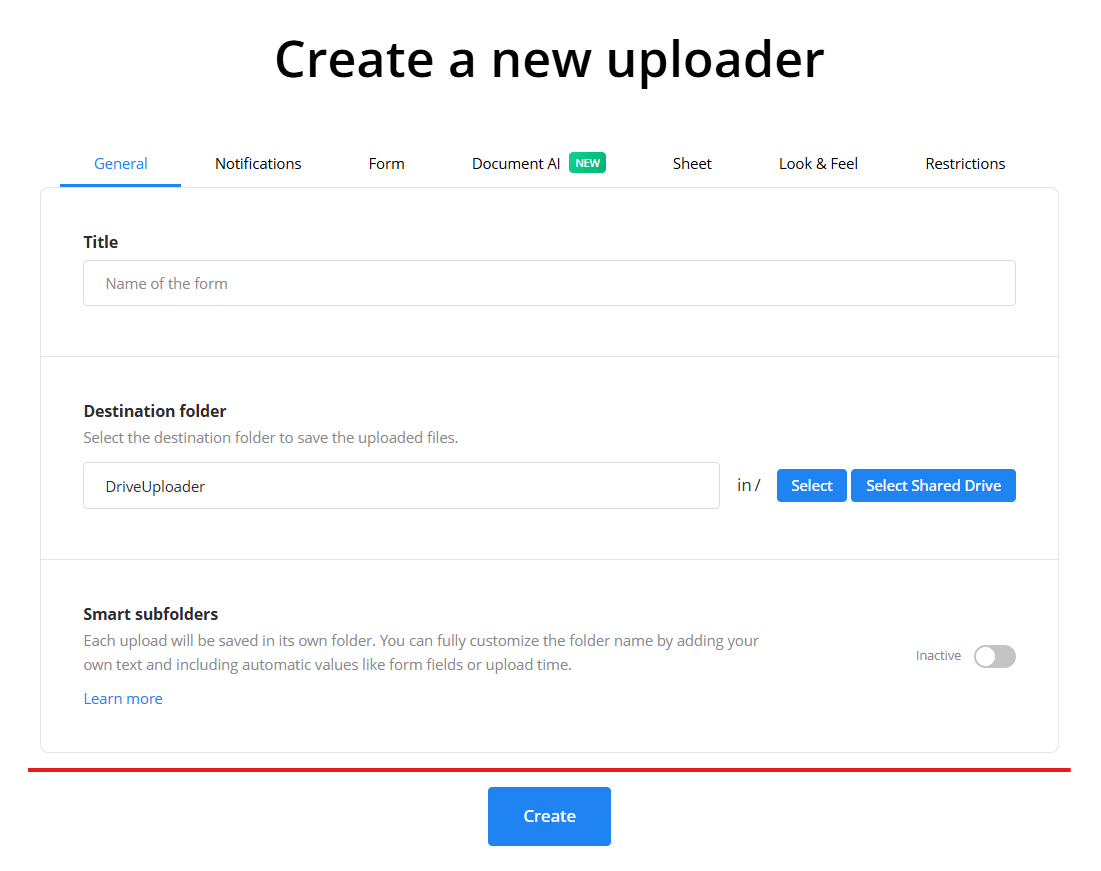
- Open the General tab.
- Scroll to the Smart subfolders section.
- Enable the Active toggle.
Creating your folder structure
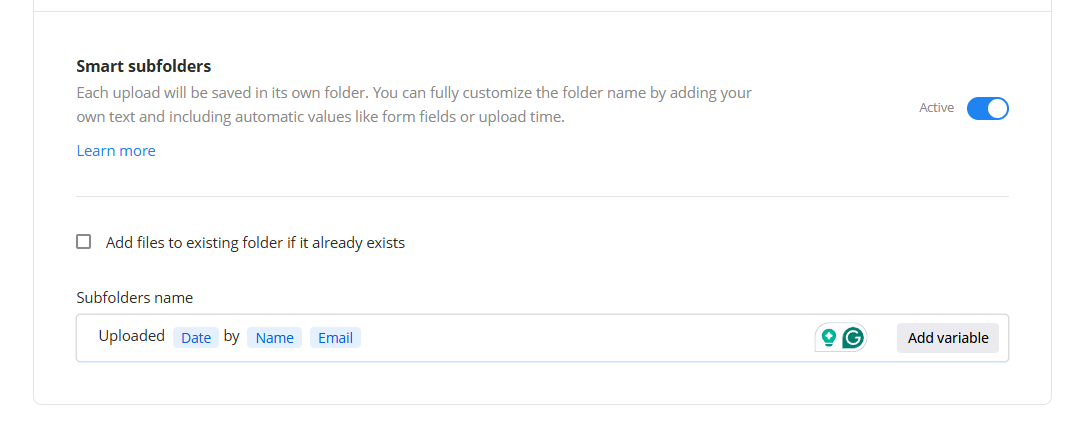
Once enabled, you can define how folder names should be generated.
Click Add variable to insert dynamic values into the folder name. You can also combine variables with your own custom text.
For example:
Uploaded [Date] by [Name] [Email]
could create folders such as:
Uploaded 2025-08-15 by John Smith john@example.com
Available variables
DriveUploader provides several types of variables that can be used in Smart Subfolders.
General variables
These values are related to the uploader itself, including:
- Uploader owner name
- Uploader title
Date variables
Date-based variables are useful for creating time-based folder structures. Examples include:
- Date and time
- Date only
- Time only
- Year and month
- Year
Form submission values
Any field created in the Form tab can be used as a folder name. Examples:
- Name
- Email
- Project name
- Customer ID
- Invoice number
- Any custom form field
Document AI values
If you use Document AI, extracted values can also be used for Smart Subfolders. For example, DriveUploader can automatically create folders based on:
- Invoice number
- Supplier name
- Customer name
- Reference number
- Any value extracted by your Document AI configuration
This makes it possible to automatically organise documents without requiring users to fill in a form.
Using existing folders
By default, DriveUploader creates a new folder for every upload.
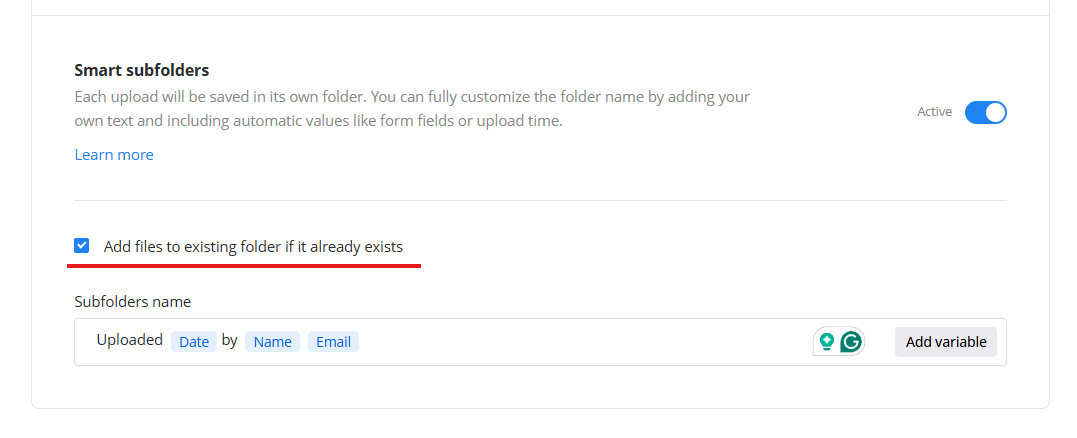
If you enable Add files to the existing folder if it already exists, DriveUploader will check whether a folder with the generated name already exists.
- If the folder exists, the uploaded files will be added to that folder.
- If the folder does not exist, DriveUploader will create it automatically.
Important notes
- Smart Subfolders are available on paid plans.
- Folder names can combine custom text and multiple variables.
- Values from forms and Document AI can be used even if they are not stored elsewhere.
- Folders are created automatically when needed.
- Multiple uploads can be grouped into the same folder when using the Add files to the existing folder if it already exists option.
Summary
Smart Subfolders automatically organise uploads into Google Drive folders using:
- Uploader information
- Date values
- Form fields
- Document AI results
By combining variables with your own text, you can create a folder structure that matches your workflow and keeps uploaded files organised automatically.
